> ## Documentation Index
> Fetch the complete documentation index at: https://docs.peaka.com/llms.txt
> Use this file to discover all available pages before exploring further.
# Superset
> Welcome to the installation guide for integrating Apache Superset with Peaka. As a leading data platform, Peaka provides seamless integration with various business intelligence and data visualization platforms, including Apache Superset. This document will guide you through the step-by-step process to set up this integration, enabling you to unlock the full potential of your data. Please follow each step carefully to ensure a successful setup.
You need 2 steps to complete setup:
* Generate Peaka API Key
* Add Peaka as Database Connection
## Generate API Key
After you create your project, setup connections and create your catalogs in Peaka, you need to generate a Peaka API Key to use it with Superset.
Check out Peaka Documentation on [how to create API Keys](https://docs.peaka.com/how-to-guides/how-to-generate-api-keys) for detailed instructions.
## Add Peaka as Database Connection
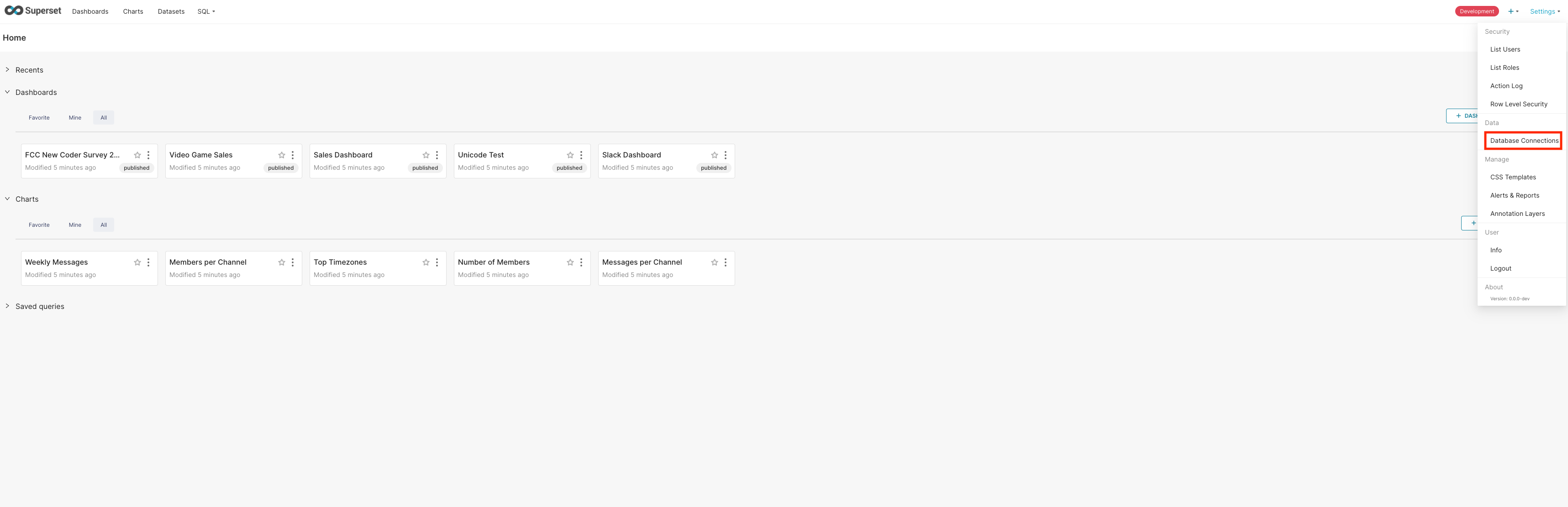
* Adding Peaka as Database Connection to Superset is so easy. In your main dashboard in Superset, click Setting and then click Database Connections.
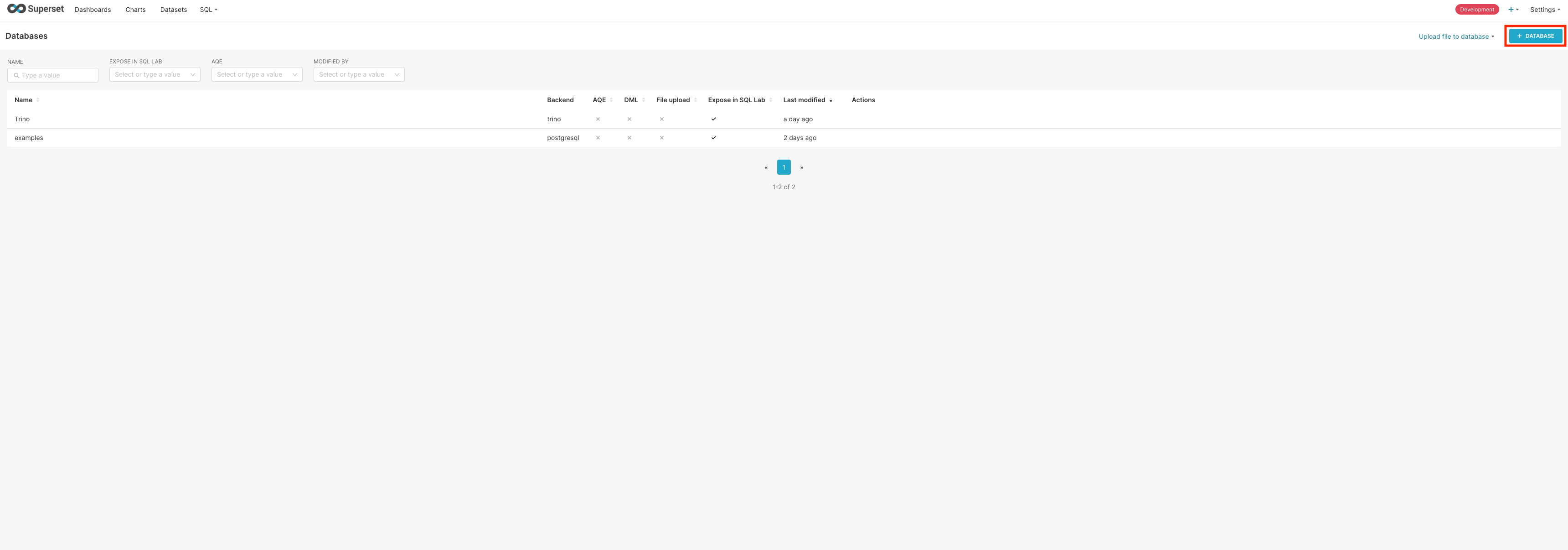
Then in the next screen click Database button on the top right corner of your screen.
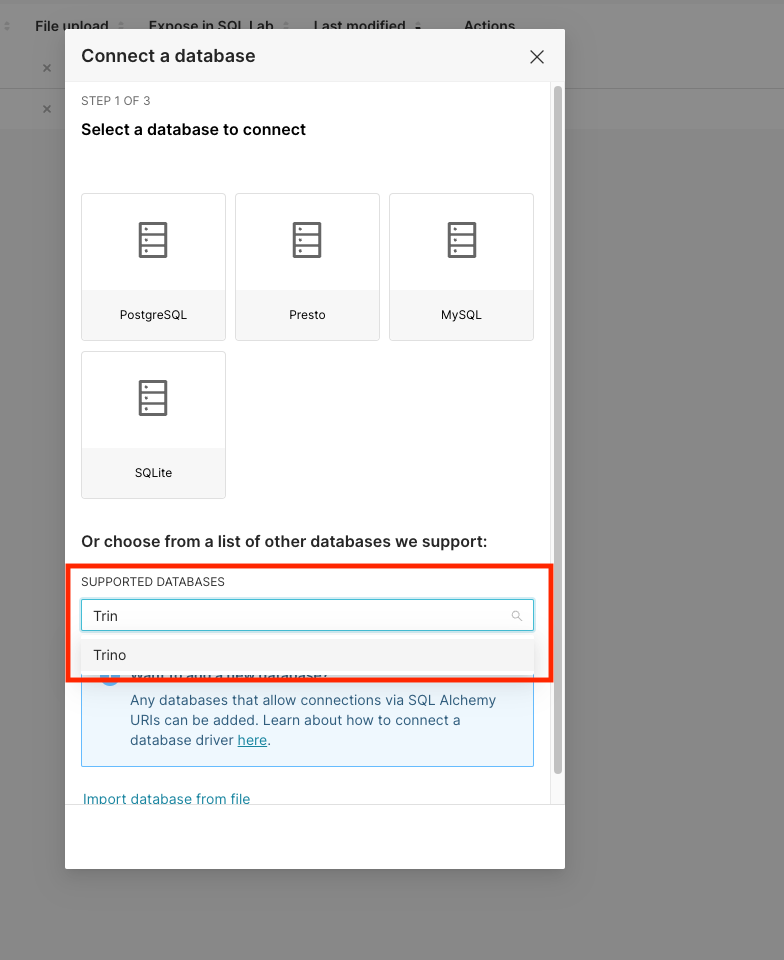
 * Connect a database window will open. In supported databases select Trino.
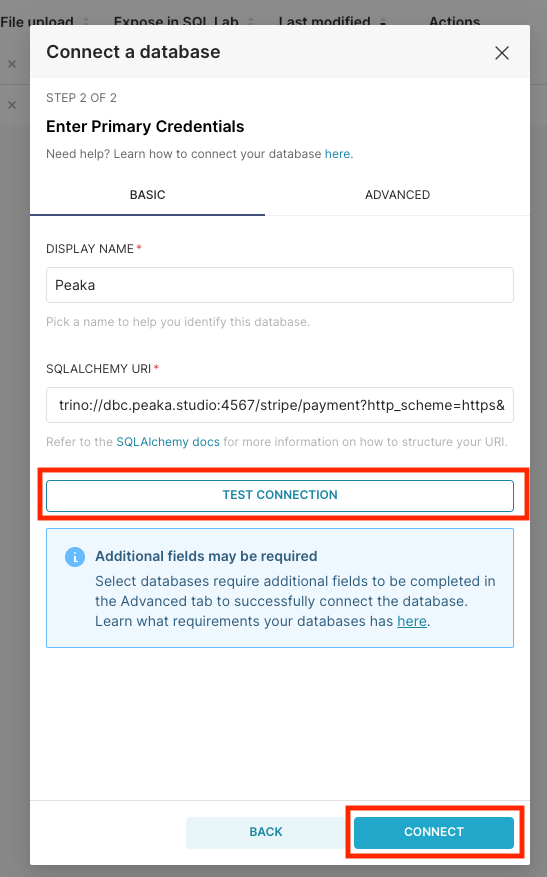
 * In the next screen you need to enter Display Name and SQL Alchemy URI. You can enter anything you like for the Display Name.The SQL Alchemy URI format is like below:
**Note:** If you are using Peaka in EU, you need to use `trino://dbc.eu.peaka.studio:4567` instead of `trino://dbc.peaka.studio:4567`.
`trino://dbc.peaka.studio:4567//?http_scheme=https&extra_credential=[["peakaKey",""]]&access_token=true`
You need to fill ``, `` and ``. For example if I want to see work on the tables under stripe catalog and payment schema created in Peaka with API Key `abc` , then my SQL Alchemy URI would look like below:
`trino://dbc.peaka.studio:4567/stripe/payment?http_scheme=https&extra_credential=[["peakaKey","abc"]]&access_token=true`
Then click `Test Connection` button to test the connection and if the connection is ok, then click `Connect` button.
* In the next screen you need to enter Display Name and SQL Alchemy URI. You can enter anything you like for the Display Name.The SQL Alchemy URI format is like below:
**Note:** If you are using Peaka in EU, you need to use `trino://dbc.eu.peaka.studio:4567` instead of `trino://dbc.peaka.studio:4567`.
`trino://dbc.peaka.studio:4567//?http_scheme=https&extra_credential=[["peakaKey",""]]&access_token=true`
You need to fill ``, `` and ``. For example if I want to see work on the tables under stripe catalog and payment schema created in Peaka with API Key `abc` , then my SQL Alchemy URI would look like below:
`trino://dbc.peaka.studio:4567/stripe/payment?http_scheme=https&extra_credential=[["peakaKey","abc"]]&access_token=true`
Then click `Test Connection` button to test the connection and if the connection is ok, then click `Connect` button.
 Installation is complete you should be able to see Peaka in Database Connections List. You can start using Peaka with Superset.
