> ## Documentation Index
> Fetch the complete documentation index at: https://docs.peaka.com/llms.txt
> Use this file to discover all available pages before exploring further.
# How to Embed the Peaka's UI to Your Web Application
> Learn how you can easily embed the Peaka's UI to your web application
Peaka allows you to seamlessly embed its user interface into your web application. In this article, we will guide you through the steps to integrate Peaka's UI into your own application.
### Prerequisites
* Partner API Key: To create a Partner API Key, please refer to our guide on [managing partner API keys](https://docs.peaka.com/how-to-guides/how-to-manage-partner-api-key#how-to-manage-your-partner-api-key).
## Initiate the Session
* To begin, you need to initiate a session with Peaka using your Partner API Key as the token.
```javascript cURL theme={null}
curl --request GET \
--url https://partner.peaka.studio/api/v1/ui/initSession \
--header 'Authorization: Bearer '
```
```javascript JavaScript theme={null}
const options = {method: 'GET', headers: {Authorization: 'Bearer '}};
fetch('https://partner.peaka.studio/api/v1/ui/initSession', options)
.then(response => response.json())
.then(response => console.log(response))
.catch(err => console.error(err));
```
```python Python theme={null}
import requests
url = "https://partner.peaka.studio/api/v1/ui/initSession"
headers = {"Authorization": "Bearer "}
response = requests.request("GET", url, headers=headers)
print(response.text)
```
```php PHP theme={null}
$curl = curl_init();
curl_setopt_array($curl, [
CURLOPT_URL => "https://partner.peaka.studio/api/v1/ui/initSession",
CURLOPT_RETURNTRANSFER => true,
CURLOPT_ENCODING => "",
CURLOPT_MAXREDIRS => 10,
CURLOPT_TIMEOUT => 30,
CURLOPT_HTTP_VERSION => CURL_HTTP_VERSION_1_1,
CURLOPT_CUSTOMREQUEST => "GET",
CURLOPT_HTTPHEADER => [
"Authorization: Bearer "
],
]);
$response = curl_exec($curl);
$err = curl_error($curl);
curl_close($curl);
if ($err) {
echo "cURL Error #:" . $err;
} else {
echo $response;
}
```
```go Go theme={null}
package main
import (
"fmt"
"net/http"
"io/ioutil"
)
func main() {
url := "https://partner.peaka.studio/api/v1/ui/initSession"
req, _ := http.NewRequest("GET", url, nil)
req.Header.Add("Authorization", "Bearer ")
res, _ := http.DefaultClient.Do(req)
defer res.Body.Close()
body, _ := ioutil.ReadAll(res.Body)
fmt.Println(res)
fmt.Println(string(body))
}
```
```java JAVA theme={null}
HttpResponse response = Unirest.get("https://partner.peaka.studio/api/v1/ui/initSession")
.header("Authorization", "Bearer ")
.asString();
```
* The endpoint will provide a URL to initiate your session.
```javascript theme={null}
{
"sessionUrl": "https://partner.peaka.studio/api/v1/ui/session?code="
"partnerOrigin": "https://.peaka.studio/"
}
```
You can access the user interface using the provided URL.
## Enabling Embedded UI for Peaka Integration Using an iframe
For security reasons, you cannot use the session URL directly in an iframe. To embed Peaka within an iframe, you need to enable the embedded UI for your partner API key.
In order to do that you should;
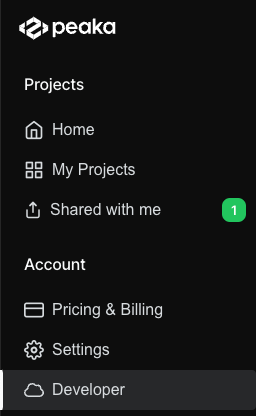
* Go to `Developer Settings` in your peaka account.
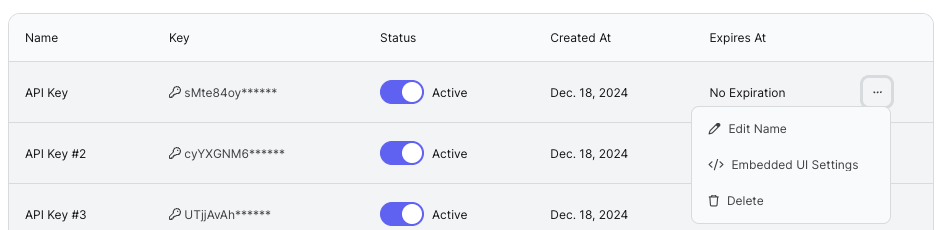
 * Find your api key in the table then click `...` button.
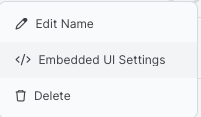
 * Select `Enable Embedded UI` option
 * Enable Embedded UI for this API Key
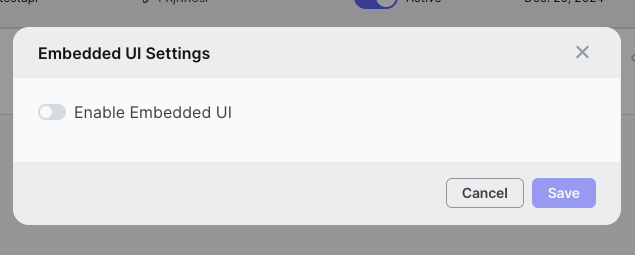 * Enter your domain that you want to embed the Peaka app.
 URL is needed for security reasons. Please be aware that your application should be served over HTTPS for use in an iframe.
* If you want to customize the UI, click "Customize UI Theme" button then give a theme name and upload your custom css file. You can also download the valid example of the customization file (Check out the related documentation [to learn more about customization](/how-to-guides/how-to-customize-embedded-ui-style)).
You can add custom css files more than one and change themes in runtime.
URL is needed for security reasons. Please be aware that your application should be served over HTTPS for use in an iframe.
* If you want to customize the UI, click "Customize UI Theme" button then give a theme name and upload your custom css file. You can also download the valid example of the customization file (Check out the related documentation [to learn more about customization](/how-to-guides/how-to-customize-embedded-ui-style)).
You can add custom css files more than one and change themes in runtime.
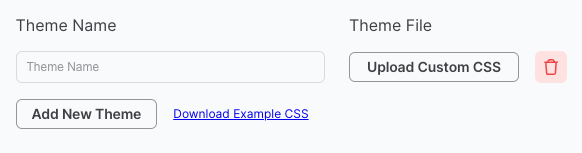 After you set the css file, you should start the session with following parameters to enable custom theme.
```json theme={null}
{
projectId:
theme: ,
themeOverride: true
}
```
Now you are ready to embed Peaka's UI into your web application using an iframe.
```html theme={null}
```
Note: If you want to switch between different themes in runtime you can do it with iframe's post message method.
```javascript theme={null}
iframeElement.contentWindow.postMessage(
{
theme:
themeOverride: true,
},
partnerOrigin:
);
```
Congratulations! You have successfully embedded Peaka's UI into your web application. Your users can now seamlessly interact with Peaka's interface to manage their data efficiently and effectively.
After you set the css file, you should start the session with following parameters to enable custom theme.
```json theme={null}
{
projectId:
theme: ,
themeOverride: true
}
```
Now you are ready to embed Peaka's UI into your web application using an iframe.
```html theme={null}
```
Note: If you want to switch between different themes in runtime you can do it with iframe's post message method.
```javascript theme={null}
iframeElement.contentWindow.postMessage(
{
theme:
themeOverride: true,
},
partnerOrigin:
);
```
Congratulations! You have successfully embedded Peaka's UI into your web application. Your users can now seamlessly interact with Peaka's interface to manage their data efficiently and effectively.