> ## Documentation Index
> Fetch the complete documentation index at: https://docs.peaka.com/llms.txt
> Use this file to discover all available pages before exploring further.
# How to generate API Key for your project
> Learn how you can generate API Keys in your projects.
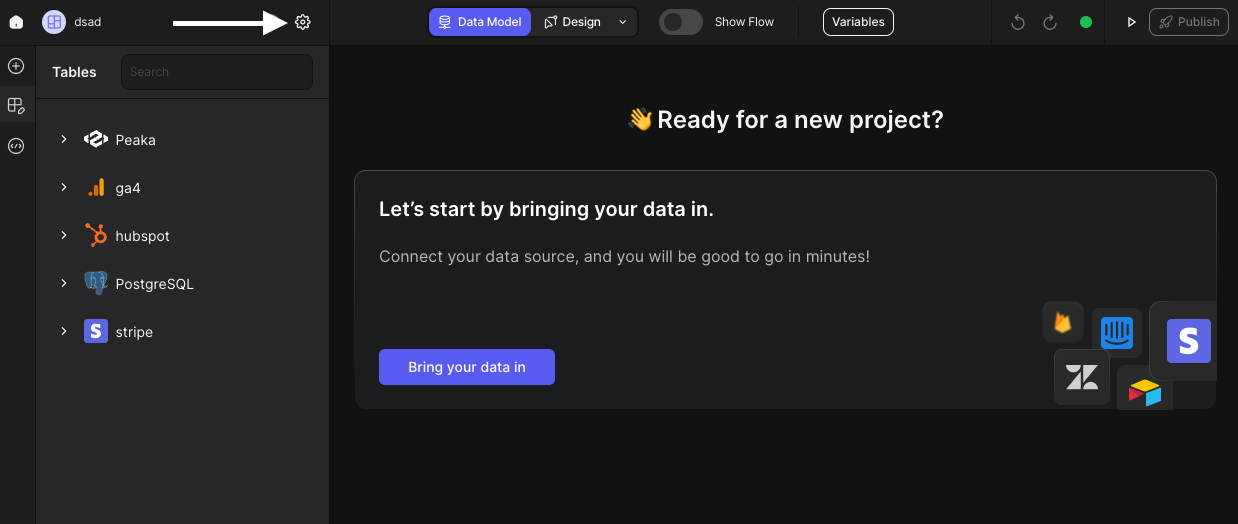
## 1. Navigate to the Settings Page
Users can generate API Keys on the settings page. Follow these steps:
* Click on the icon as shown in the image below:
 ## 2. Select API Keys Tab
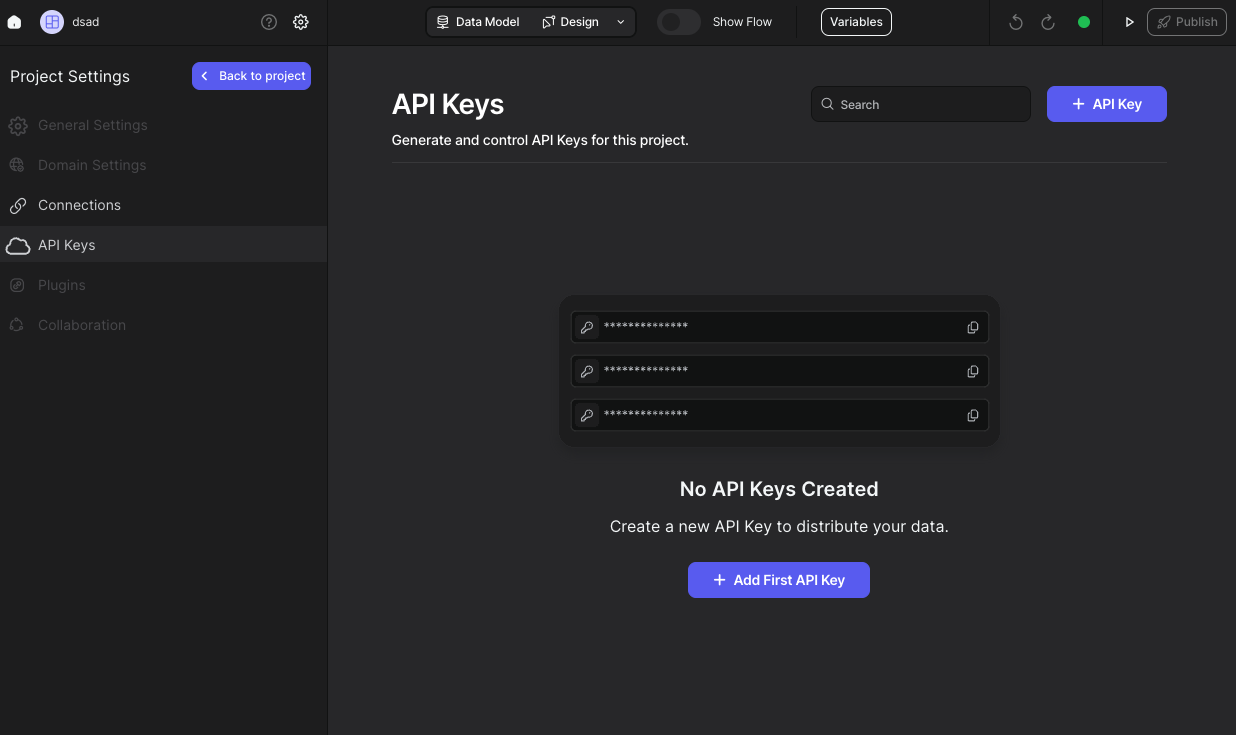
Once on the settings page:
* Navigate to the API Keys tab from the sidebar.
## 2. Select API Keys Tab
Once on the settings page:
* Navigate to the API Keys tab from the sidebar.
 ## 3. Generate Your API Key
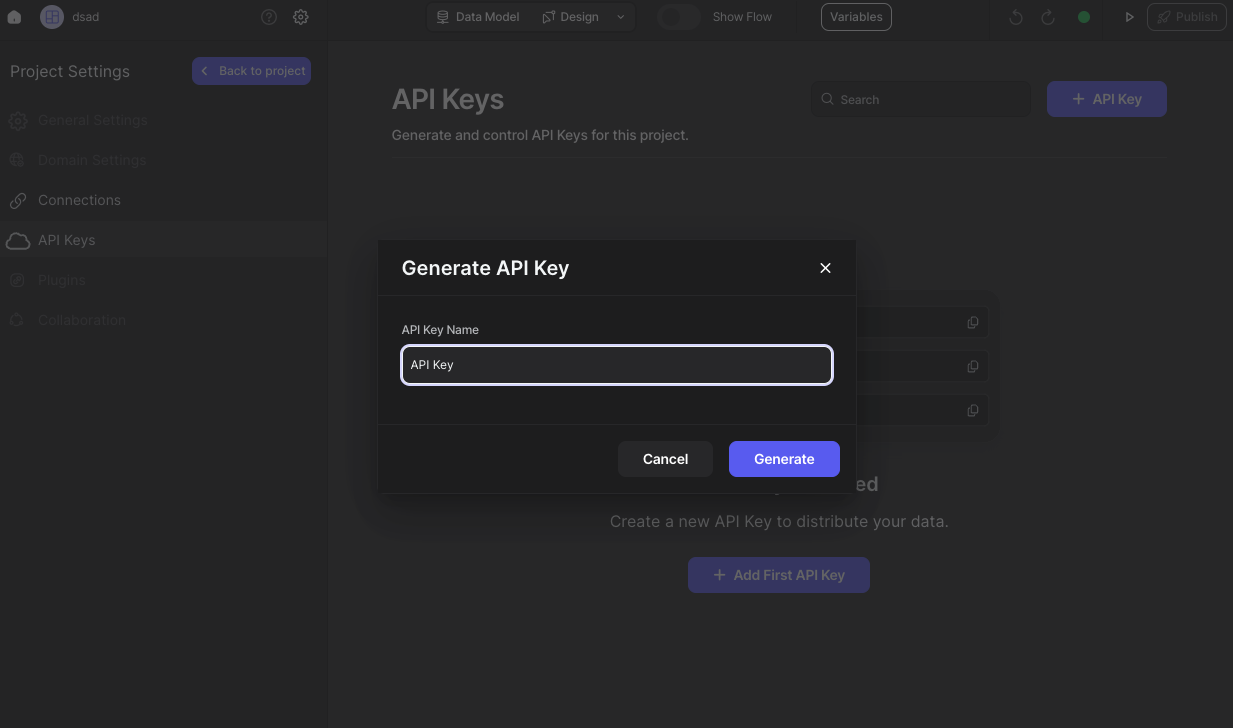
To generate your first API Key:
* Click either the "Add First API Key" button or the "API Key" button. This will open a modal.
* Enter your API Key name.
* Click on the "Generate" button.
## 3. Generate Your API Key
To generate your first API Key:
* Click either the "Add First API Key" button or the "API Key" button. This will open a modal.
* Enter your API Key name.
* Click on the "Generate" button.
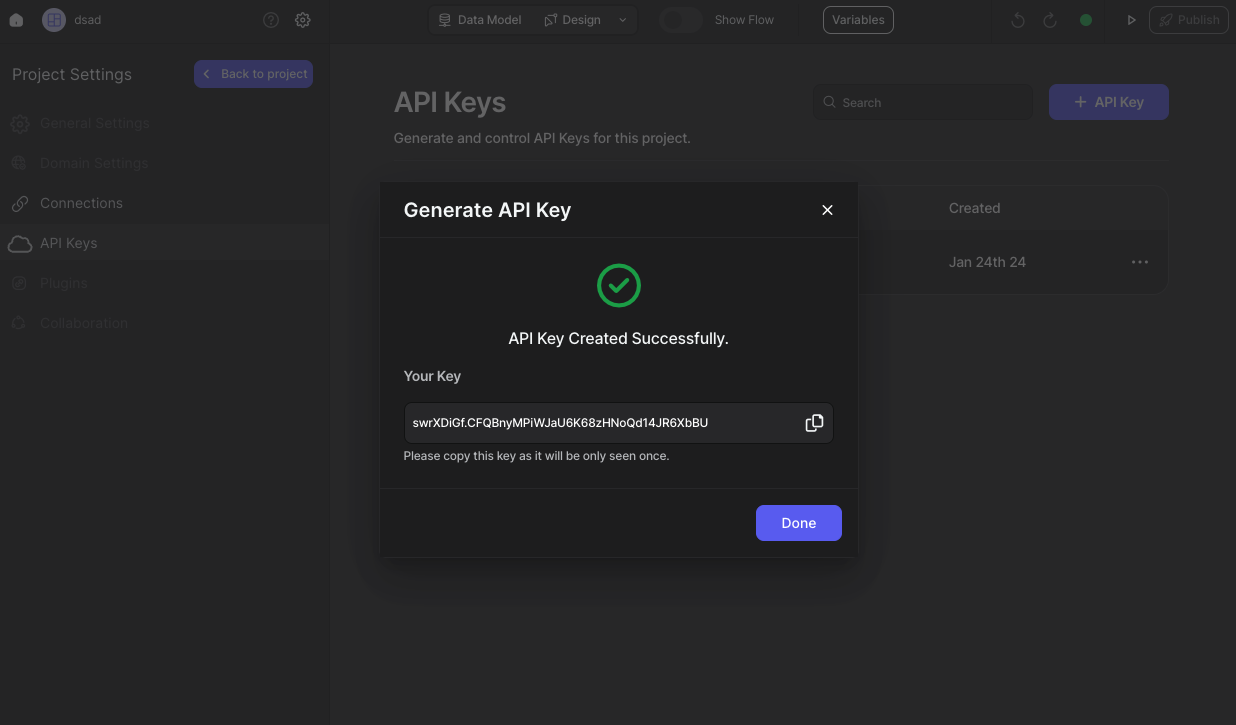
 ## 4. Copy and Use Your API Key
Your API Key is now created. Simply:
* Copy the generated API Key.
* Use it wherever you need.
## 4. Copy and Use Your API Key
Your API Key is now created. Simply:
* Copy the generated API Key.
* Use it wherever you need.
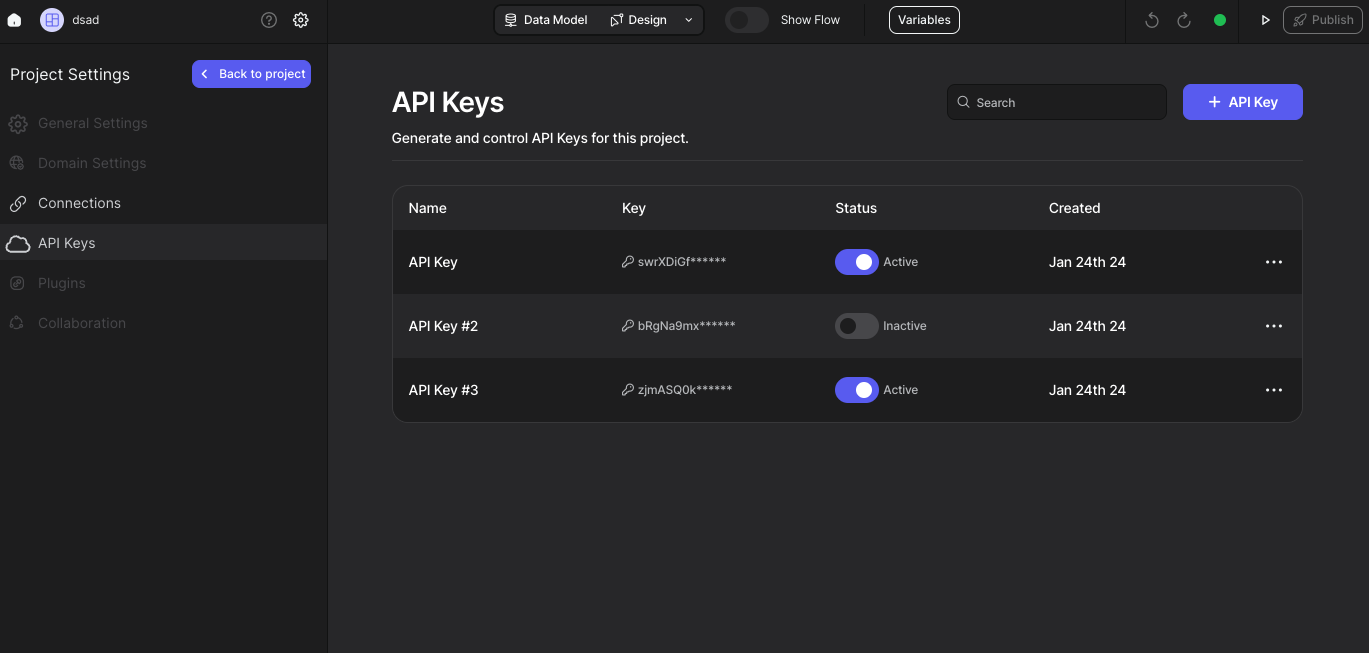
 That's it. You can see your API Keys and edit them.