> ## Documentation Index
> Fetch the complete documentation index at: https://docs.peaka.com/llms.txt
> Use this file to discover all available pages before exploring further.
# Google Spanner
> Discover a seamless integration process! Learn how to connect Google Spanner to Peaka effortlessly for streamlined transactions.
This article guides you through the process of connecting Google Spanner to Peaka, allowing you to seamlessly access your Google Spanner data within the Peaka platform.
## Prerequisites
Before you start, you will need the following information from Google Spanner.
* **Dialect**
* **Project ID**
* **Instance ID**
* **Database Name**
* **Credentials** in JSON format
Follow the steps below to obtain it:
1. Check this [article](https://support.google.com/googleapi/answer/7014113?hl=en) to get your **Project ID**.
2. To get your **Dialect**, follow these steps:
* Open your Google Cloud Console.
* Go to your Spanner Database Overview page.
* Look at the **Database info** section on the screen.
* Check the **Database dialect** label and note the value.
3. To get your **Instance ID**, check this [article](https://cloud.google.com/spanner/docs/create-manage-instances).
4. To get your **Database Name**, follow these steps:
* Navigate to your Google Cloud Spanner Instances page.
* Click on the name of the Instance ID you found in the previous step.
* On the instance details page, look at the **Databases** table at the bottom of the screen.
* Your database name is listed under the **Database ID** column (e.g., `example-db`, `banking-db`, `production`).
5. To create your **Credentials JSON** file, follow these steps:
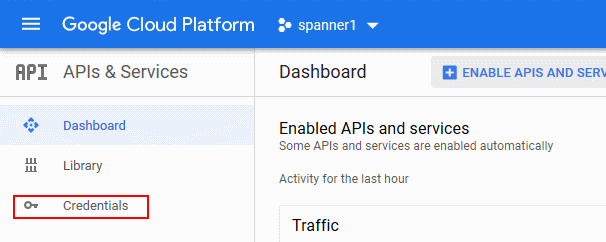
* Visit the [APIs & Services](https://console.cloud.google.com/apis/dashboard) page in the Google Cloud Platform Console and click **Credentials**.
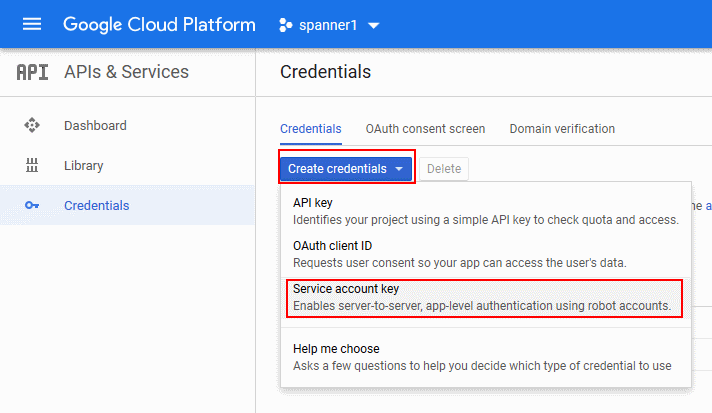
 * Click **Create credentials** and choose **Service account key**.
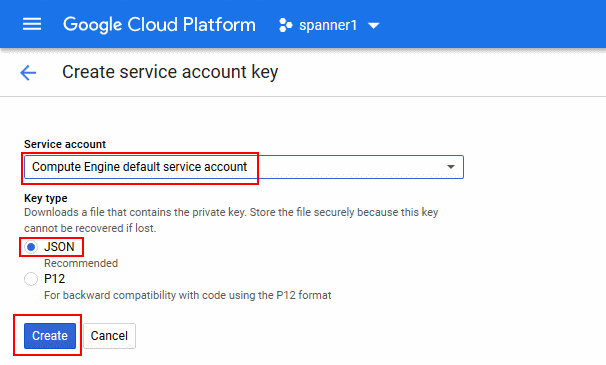
 * Under **Service account**, choose **Compute Engine default service
account** and leave **JSON** selected under **Key type**. Click **Create**.
Your browser will download a JSON file.
* Under **Service account**, choose **Compute Engine default service
account** and leave **JSON** selected under **Key type**. Click **Create**.
Your browser will download a JSON file.
 ## Connecting Google Spanner to Peaka
Now that you have obtained the necessary integration data and credentials, you can connect Google Spanner to Peaka using the following steps:
1. Navigate to the data model page in Peaka.
2. In the side menu bar, click the **"New Data Source"** button to initiate the connection process.
3. In the modal that appears, select **"Google Spanner"** as your data source.
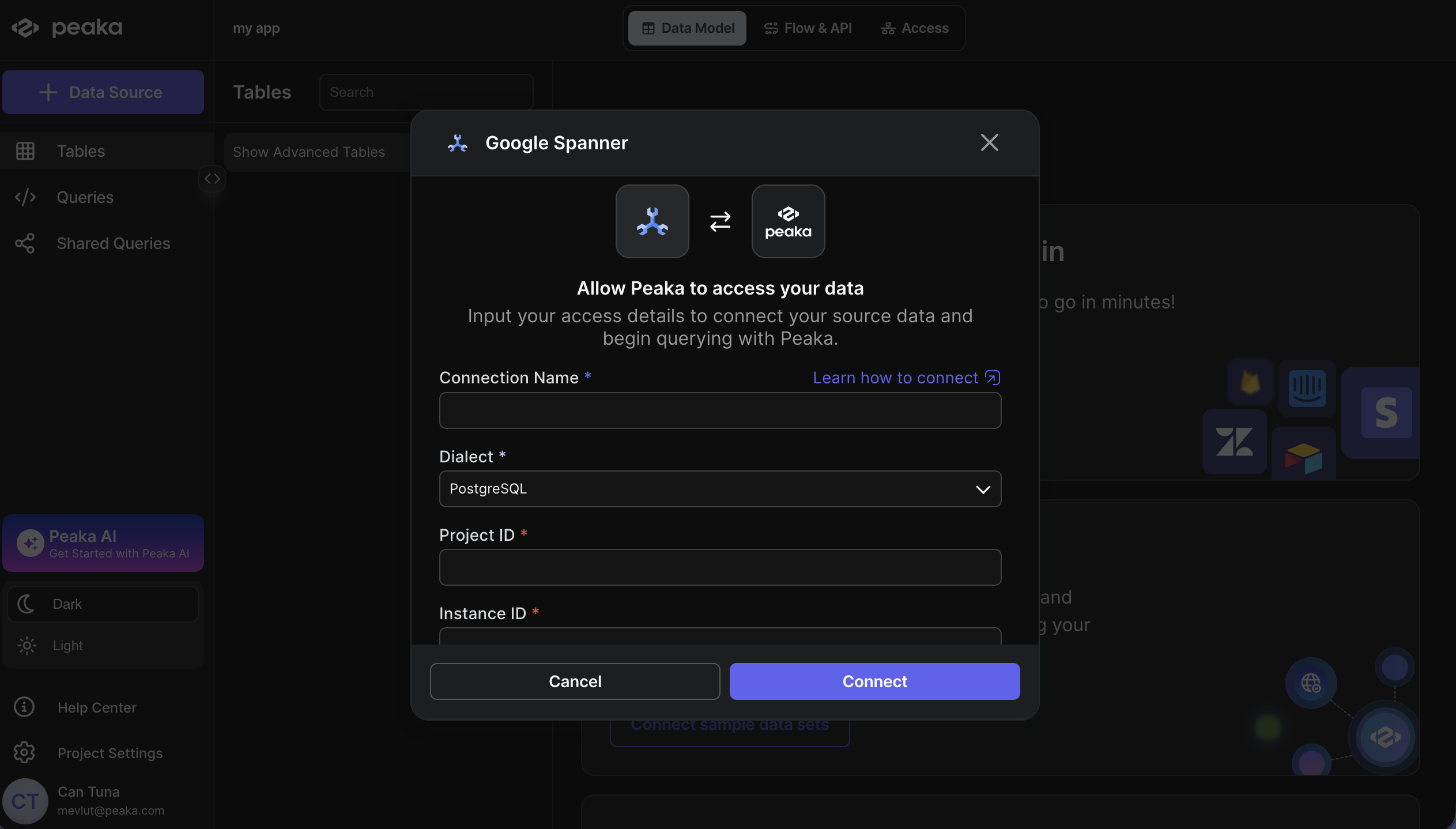
4. Enter a name for your data source, fill in the **Project ID**, **Instance ID**, **Database Name**, and **Dialect** fields, then upload the credentials JSON file you downloaded in step 5.
## Connecting Google Spanner to Peaka
Now that you have obtained the necessary integration data and credentials, you can connect Google Spanner to Peaka using the following steps:
1. Navigate to the data model page in Peaka.
2. In the side menu bar, click the **"New Data Source"** button to initiate the connection process.
3. In the modal that appears, select **"Google Spanner"** as your data source.
4. Enter a name for your data source, fill in the **Project ID**, **Instance ID**, **Database Name**, and **Dialect** fields, then upload the credentials JSON file you downloaded in step 5.
 5. Click **"Next"** to create your Google Spanner data source.
Congratulations! You've successfully connected Google Spanner to Peaka. You can now access and manage your Google Spanner data seamlessly within the Peaka platform.
5. Click **"Next"** to create your Google Spanner data source.
Congratulations! You've successfully connected Google Spanner to Peaka. You can now access and manage your Google Spanner data seamlessly within the Peaka platform.