> ## Documentation Index
> Fetch the complete documentation index at: https://docs.peaka.com/llms.txt
> Use this file to discover all available pages before exploring further.
# ServiceTitan
> This guide explains how to connect your ServiceTitan account to Peaka in order to access and analyze your ServiceTitan data within the Peaka platform.
## Prerequisites
Before you begin, ensure you have the following credentials from ServiceTitan:
* **Tenant** (Tenant ID)
* **Application Key**
* **Client ID**
* **Client Secret**
*You can obtain the Application Key, Client ID, and Client Secret by registering your app on [developer.servicetitan.io](https://developer.servicetitan.io/). The Tenant ID identifies your ServiceTitan account and can be found in the API Applications section of your ServiceTitan account. It often matches your ServiceTitan subdomain (for example, yourcompany.servicetitan.io).*
> **Important:** When registering your app, make sure to mark the **read** permissions under each of the scopes shown below. These read permissions are required for Peaka to access and analyze your ServiceTitan data.
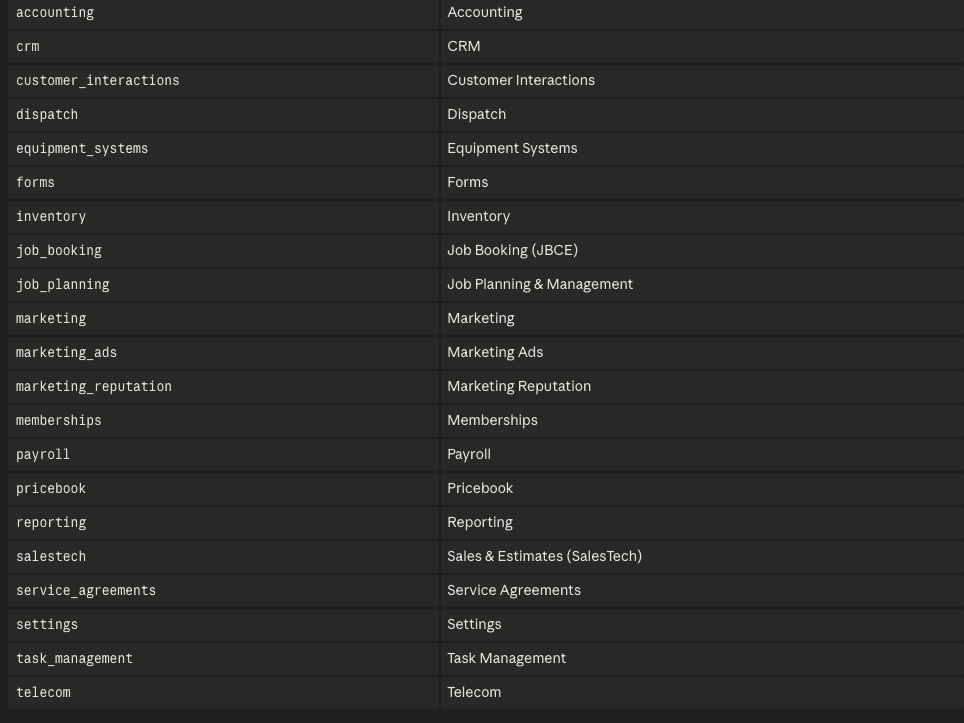 Follow these steps to obtain them:
Follow the steps below to obtain it:
1. To obtain URL and API Key, check this [article](https://help.servicetitan.com/docs/get-started-with-api-dev-portal-v2).
> **Important:** Remember which environment you use here. You must select the matching environment when connecting the data source in Peaka (see the Integration Environment toggle below). Credentials generated in one environment will not work in the other.
## Connecting ServiceTitan to Peaka
Now that you have your ServiceTitan Client ID, Client Secret, Tenant and Application Key, you can connect it to Peaka using the following steps:
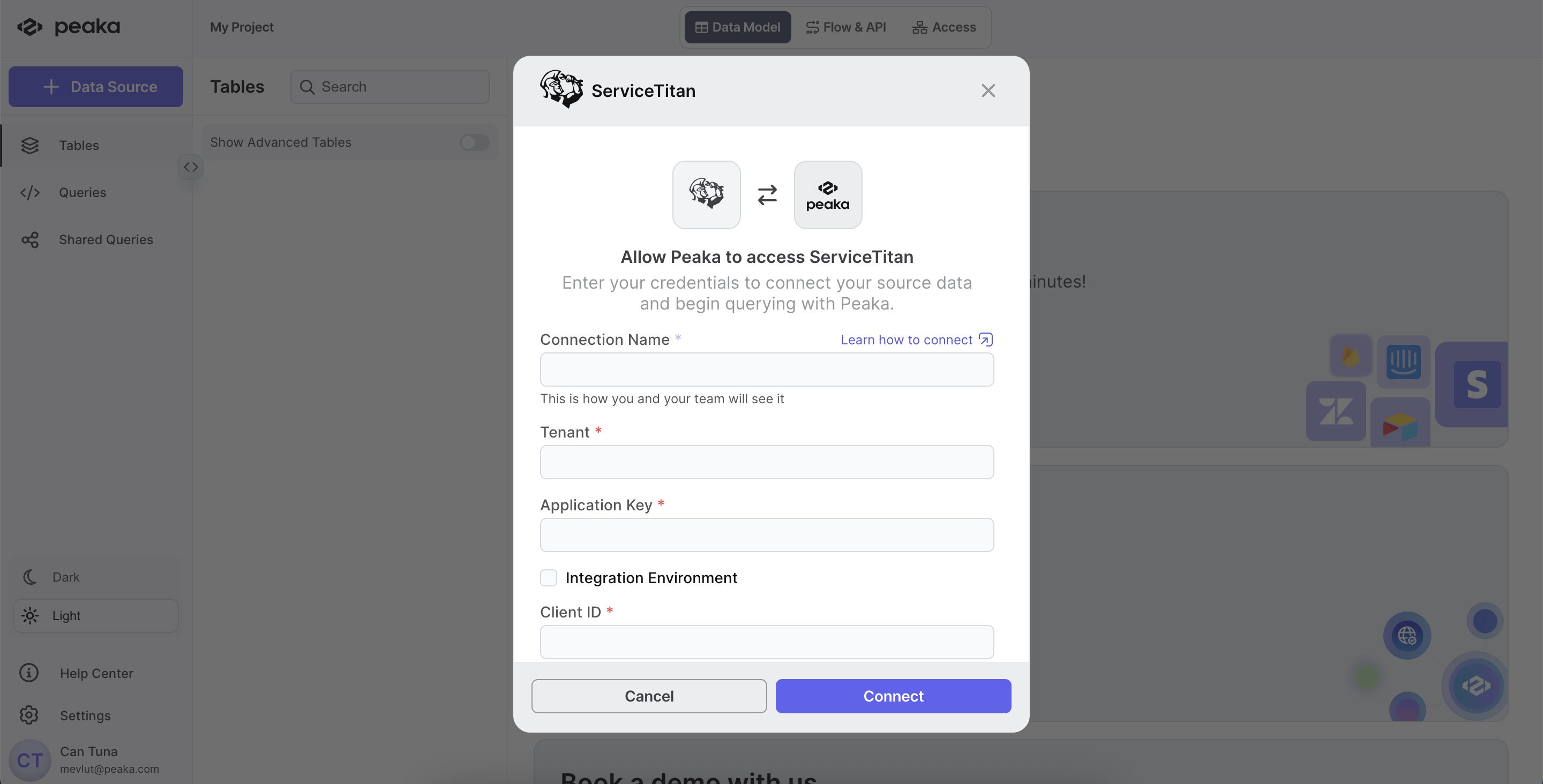
1. Navigate to the data model page in Peaka.
2. In the side menu bar, click the "New Data Source" button to initiate the connection process.
3. In the modal that appears, select "ServiceTitan" as your data source.
4. Enter a name for your data source and provide the following credentials:
* Tenant ID
* Application Key
* Client ID
* Client Secret
5. Set the **Integration Environment** toggle to match the environment in which your credentials were created:
* If your credentials were generated in the **Integration Environment**, turn the toggle **on**.
* If your credentials were generated in the **Production Environment**, leave the toggle **off**.
> **Important:** If this toggle does not match the environment used to generate your credentials, the connection will fail even if all credentials are correct.
Follow these steps to obtain them:
Follow the steps below to obtain it:
1. To obtain URL and API Key, check this [article](https://help.servicetitan.com/docs/get-started-with-api-dev-portal-v2).
> **Important:** Remember which environment you use here. You must select the matching environment when connecting the data source in Peaka (see the Integration Environment toggle below). Credentials generated in one environment will not work in the other.
## Connecting ServiceTitan to Peaka
Now that you have your ServiceTitan Client ID, Client Secret, Tenant and Application Key, you can connect it to Peaka using the following steps:
1. Navigate to the data model page in Peaka.
2. In the side menu bar, click the "New Data Source" button to initiate the connection process.
3. In the modal that appears, select "ServiceTitan" as your data source.
4. Enter a name for your data source and provide the following credentials:
* Tenant ID
* Application Key
* Client ID
* Client Secret
5. Set the **Integration Environment** toggle to match the environment in which your credentials were created:
* If your credentials were generated in the **Integration Environment**, turn the toggle **on**.
* If your credentials were generated in the **Production Environment**, leave the toggle **off**.
> **Important:** If this toggle does not match the environment used to generate your credentials, the connection will fail even if all credentials are correct.
 6. Click the "Authorize" button to finalize the creation of your ServiceTitan data source.
Your ServiceTitan data source is now successfully connected to Peaka and ready to be used.
6. Click the "Authorize" button to finalize the creation of your ServiceTitan data source.
Your ServiceTitan data source is now successfully connected to Peaka and ready to be used.