

When to use this
- You want zero install. Just paste a URL.
- You want the assistant to act under your Peaka identity, scoped to what you’re authorized to do.
- You don’t want to copy an API key around.
Add it to your client
OAuth flow
The first time your client opens a session your client opens a browser window to Peaka, where you sign in to Peaka and approve access.1
Client connects
Your AI assistant opens an MCP session against
https://mcp.peaka.studio/mcp.2
You approve in the browser
The client opens Peaka in your browser. Sign in to Peaka and
approve the consent screen.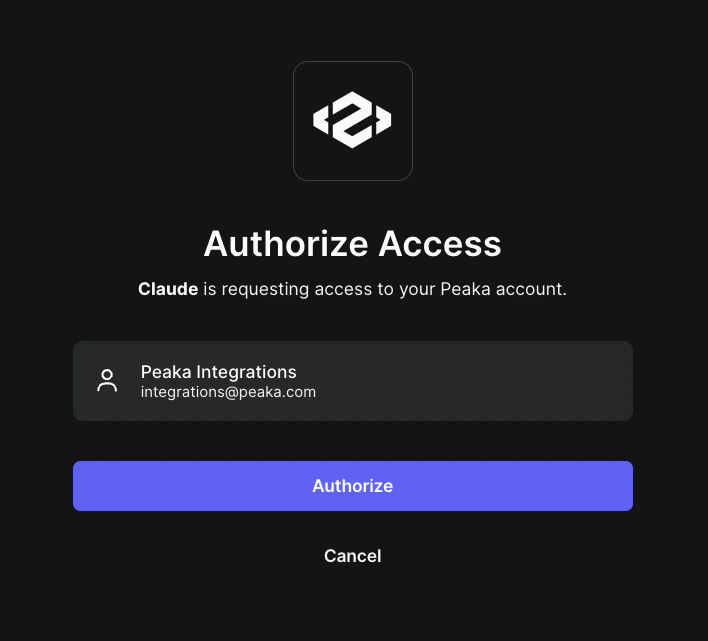
3
Connected
The assistant will confirm the connection.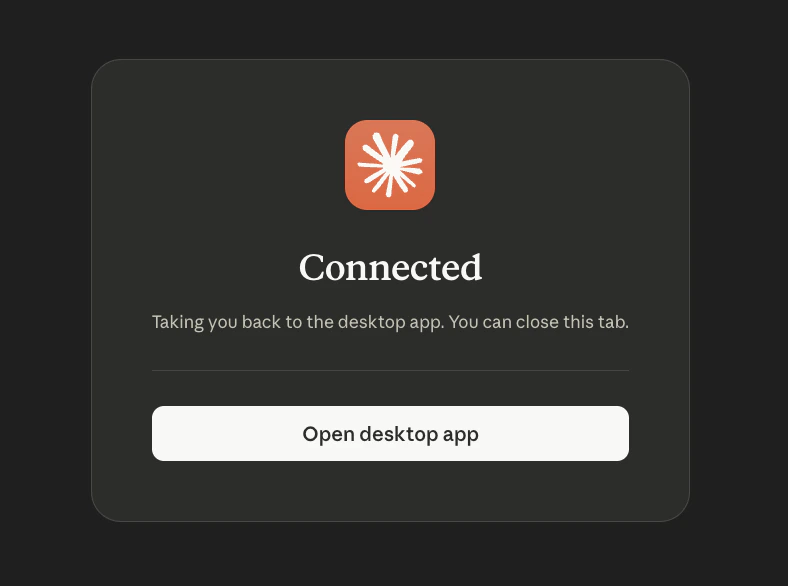
4
The connection is available
You can view the connector from your assistant’s tools.
Working with projects
The remote server is stateless with respect to project selection. Each tool call carries its ownprojectId.
To keep the conversation natural, the assistant is instructed to:
- Ask once per session which project you want to work with, then reuse it.
- Skip the question if you mention a specific project up front (e.g. “In my
analytics-prodproject, list the catalogs”).
staging project.”
Limits and behavior
- Permissions follow the user. Each call is authorized as the OAuth-signed-in user. If the user can’t do something in Peaka, the server can’t do it either.
- Rate limits. Standard Peaka API limits apply.
- Long-running operations. Cache refreshes and metadata refreshes are async and report progress via the relevant
_statustools.
Troubleshooting
If the OAuth window never opens, or your client gets stuck on401, see Troubleshooting.