

TL;DR
If you want to skip the implementation details, check out the finished code on Github. Follow the instructions on Readme to run the project on your local machine. If you want to try the demo for yourself, visit Vercel to try the demoPrerequisites
You will need the following accounts for this project:Tech Stack
Create Peaka Project and API Key
Once you login to Peaka, you need to create your project and connect sample data sets. Check out Peaka Documentation on how to create a project for detailed instructions. Enter your created project and clickConnect sample data sets button on the screen as shown in the image below:
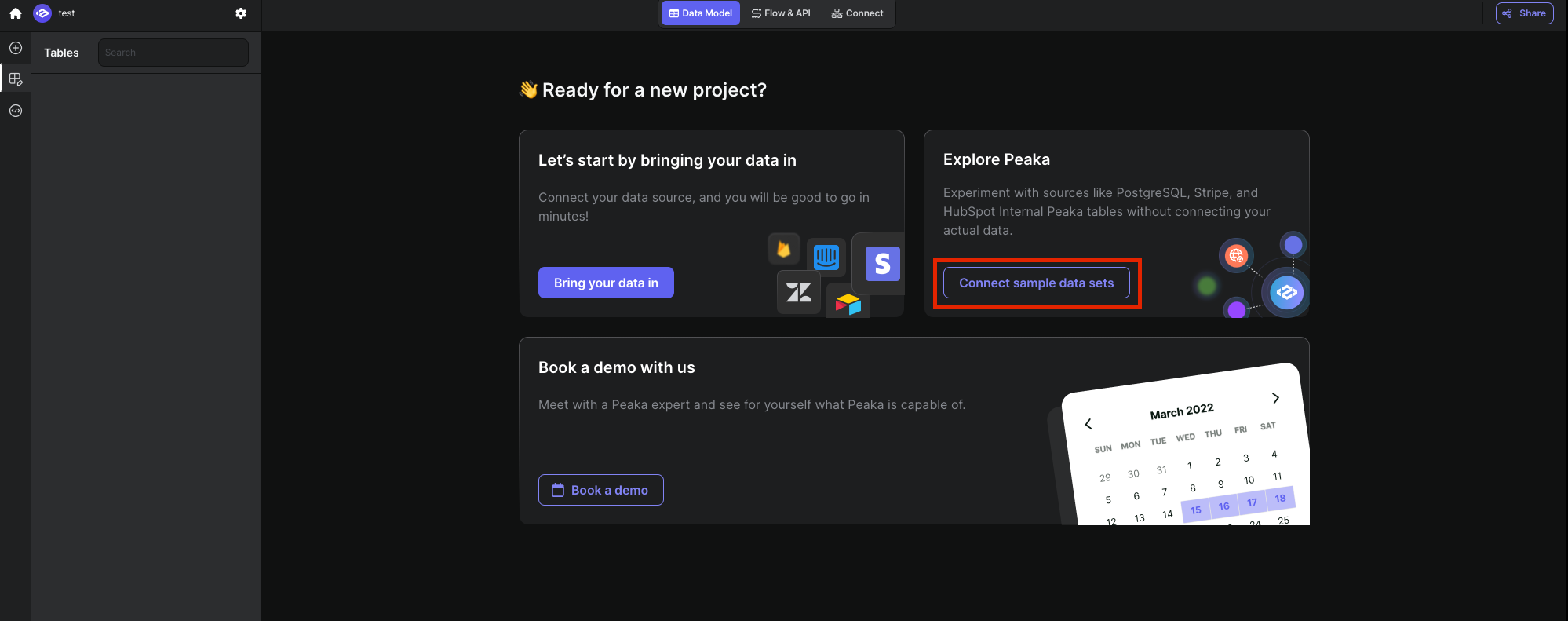 In the sample data set both Peaka Rest Table for SpaceX API and Pinecone data sources are already added. We will use these data sources for our demo app.
After you create your project, setup connections, and create your catalogs in Peaka, you need to generate a Peaka API Key to use it with our project.
Check out Peaka Documentation on how to create API Keys for detailed instructions. Copy and save your Peaka API Key.
In the sample data set both Peaka Rest Table for SpaceX API and Pinecone data sources are already added. We will use these data sources for our demo app.
After you create your project, setup connections, and create your catalogs in Peaka, you need to generate a Peaka API Key to use it with our project.
Check out Peaka Documentation on how to create API Keys for detailed instructions. Copy and save your Peaka API Key.
Create a Next.js Application
To create a new project, first navigate to the directory that you want to create your project in using your terminal. Then, run the following commands:- Use Tailwind CSS (for UI design)
- Use “App Router”
cd command and install the necessary libraries
npm run dev
is going to be sufficient to run the project on localhost:3000.
If you need further clarification, you can refer to the Readme or the Next.js documentation
Create .env file
Now create a file called.env in your project and add it to the .gitignore file if you are considering to add this project to your Github account. In this file, we will store our API keys. You need to create a Pinecone project and API Key. After creating your Pinecone project then create an index with dimension 1536 and metric cosine. Then use the name of the index in the environment variable. Finally, you need to create an OpenAI API Key. After completing necessary actions copy these values to environment variables accordingly.
Create Peaka Service
Create aservice folder under the root folder in your project and create a peaka.service.ts file inside this folder. We will need to implement two methods in this service class. The first method is getAllSpacexLaunches, which will fetch all the launches from SpaceX API. The SQL query is trivial like below:
vectorSearch method, which will query both Pinecone index and will join the results with SpaceX API results to get all of the metadata of the launches. The query will be like this:
peaka.service.ts will look like this:
Create populate data endpoint
We will implement a get endpoint which will populate vector database when called. First, we will createroute.ts under app/api/populate-data folder. We will follow below steps:
- Delete all the data in the index
- Fetch all SpaceX launches from Peaka Rest which will have article urls about SpaceX launches
- For all article urls fetch all the content with
RecursiveUrlLoaderof the langhchain library - Split all of the articles into chunks
- Write all the chunks to Pinecone index with the metada
Create Chat Prompts
Create a folderconfig in the root directory of the project and create a config.ts under this folder. We will define our system prompt and OpenAI parameters for our chatbot in here with lodash templates and export them like below:
SPACEX_CHATBOT_INSTRUCTION template we will feed the LLM with Pinecone results as context and user query and we will expect the LLM to answer with the given contex.
Implement Chatbot API
In the chatbot, we should first create a POST endpoint. The input of this endpoint should be the message of the user and output should be the message generated by LLM running on OpenAI. First, we will createroute.ts under app/api/chat. This file will have the POST endpoint with /api/chat extension in the url.
We will use ai-sdk of Vercel for response streaming and use langchain open library to interact with LLM.
The code is straight forward with an algorithm is like this:
- Get the prompt from request body
- Get the OpenAI Embeddings of the user query with langchain
- Query Pinecone Store with Peaka Client
- Finally, feed the result to the LLM and stream the response of LLM to frontend
api/chat route should like this:
Implement Chatbot UI
We have the POST endpoint ready. Now we need the UI for our chatbot. For the UI, we will useNLUX. We choose NLUX because it provides easy integration with Vercel AI SDK.
Let’s open pages.tsx file to build our chat window. The following code will implement a very basic chatbot UI for this demo. We will use AiChat component from NLUX and need to implement ChatAdapter interface in order to communicate with the backend. Then, we provide conversationOptions to our AiChat component which will built-in chat prompt for demo purposes.
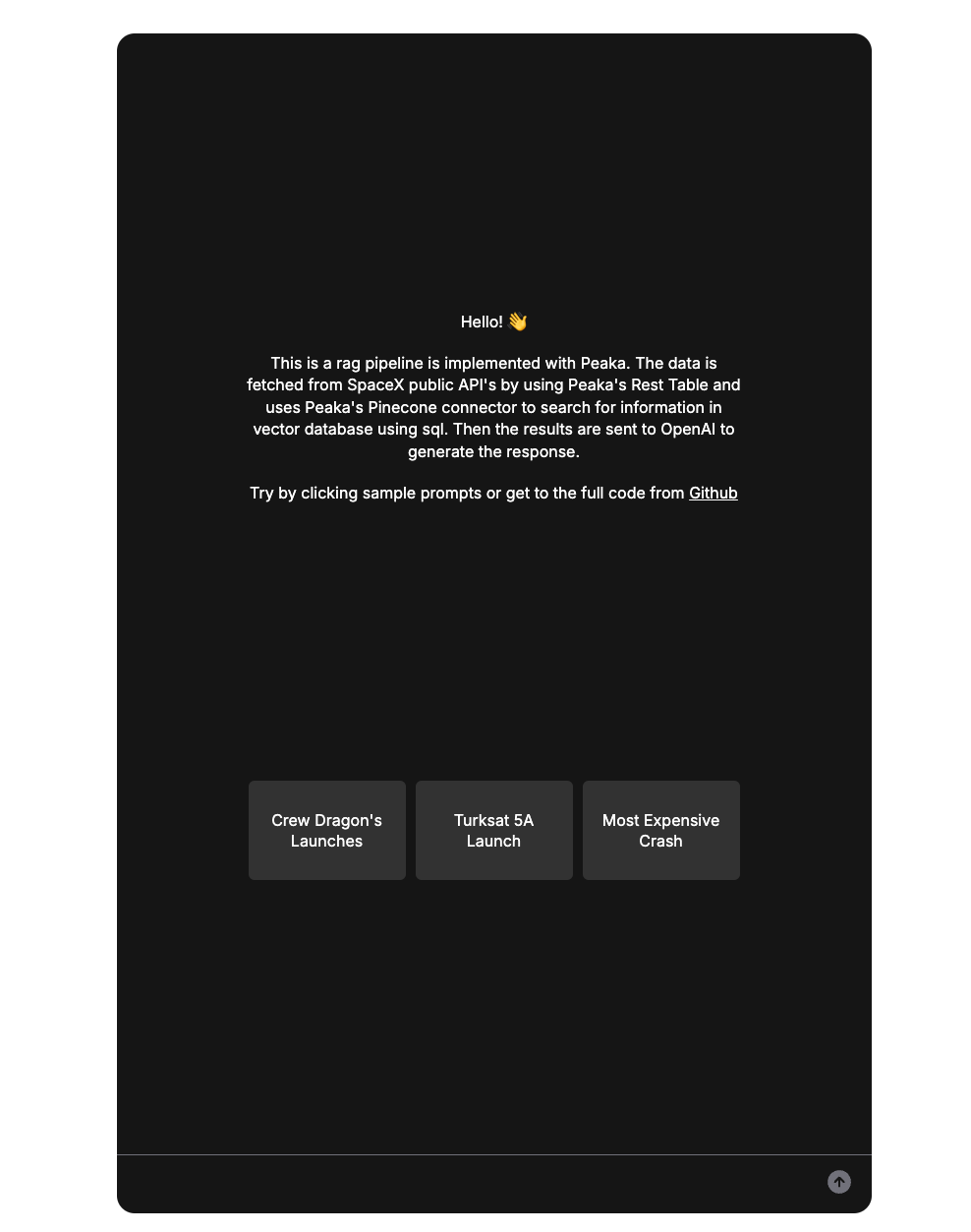 Let’s try one of our sample prompts and see what our bot will tell us about Turksat 5A launch:
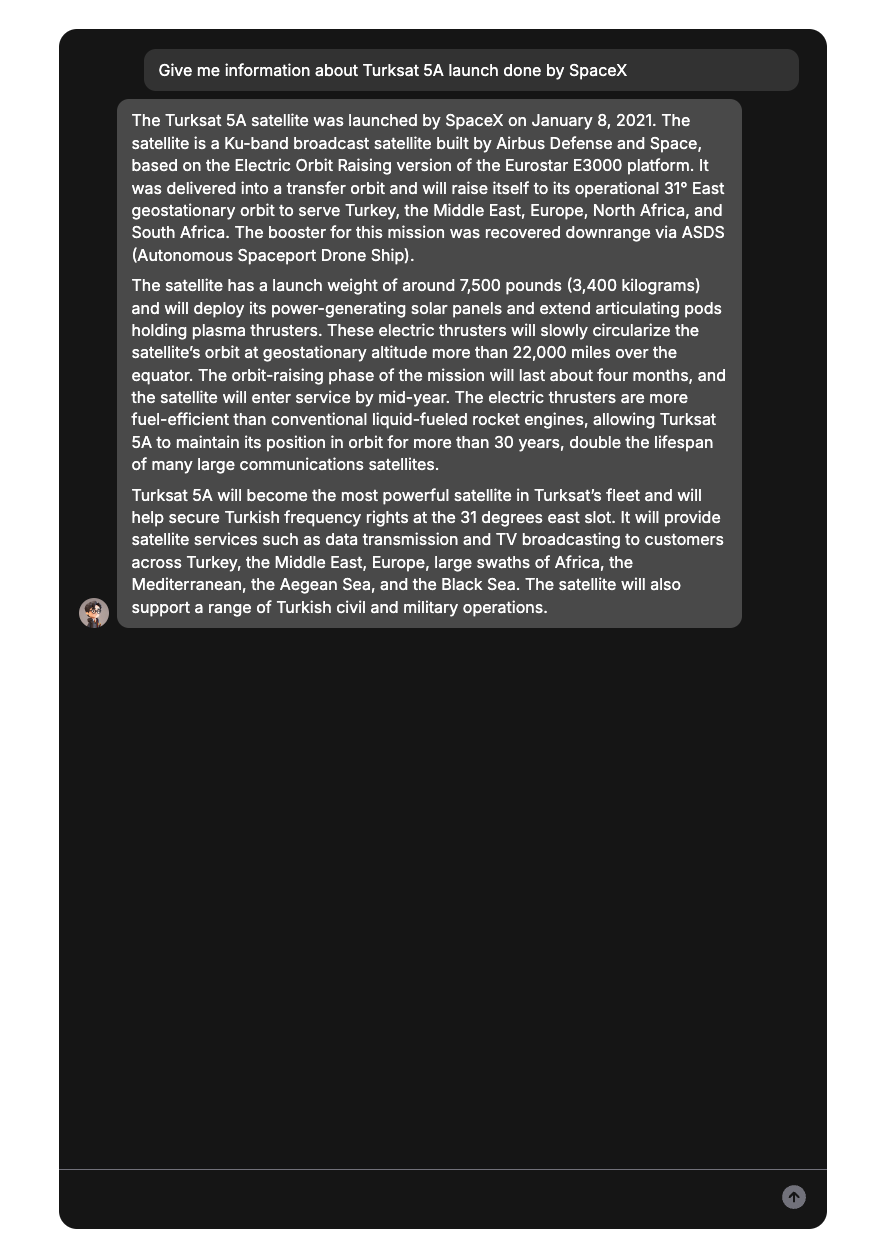 As you can see, our chatbot gave detailed information about Turksat 5A launch by combining SpaceX API data from Peaka Rest Connector and Pinecone vector index with Peaka’s query engine. By the help of Peaka, we were able to query both data sources with single API call.